A workbook for Excel and Google Sheets, with step-by-step video lessons
The Debt Payoff Command Center shows you what to pay this month
List every debt in one place. The Command Center puts them in order, shows how much to pay on each one this month, and works out a debt-free date from the numbers you type in. Slow, step-by-step video lessons show you each tab.
- See everything you owe on one screen. One total, in one place, so you can stop guessing and adding it up in your head.
- Know exactly what to pay this month. The Dashboard lists each debt and the amount, so the decision is already made when the bills come.
- See a finish line. The Command Center estimates your debt-free date from your own numbers, and you can watch it move when you add even a little extra.
- Stop second-guessing your plan. It shows snowball and avalanche side by side, with the months and the interest for each, so you can pick with the numbers in front of you.
- Find money you didn't know you had. One tab walks you through subscriptions and repeat charges, so you can decide what to keep and what to cut.
- Never wonder what to do next. The 30-Day Reset gives you one small task a day.
- Works in Excel and Google Sheets, on a computer or a phone
- No bank login. What you type stays in your own file.
- $27, one payment. No subscription.
- 30-day money-back guarantee
$27, one payment.
Starter price through January 31, 2027. The price goes to $47 on February 1.
One payment, and you can download right after checkout. Payhip adds sales tax or VAT where it applies.
This is a spreadsheet, and it does not connect to a bank. The dates and interest figures it shows are estimates, and how things go depends on the payments you make.
What it is
The Debt Payoff Command Center is a spreadsheet workbook that opens in Excel and in Google Sheets. It comes with short video lessons, a 30-day plan, phone call scripts and printable pages. Together they make up the 30-Day Debt Reset system.
The Command Center does five jobs:
- It keeps every debt in one list: who is owed, the balance, the interest rate, the minimum payment and the due day.
- It shows how much to pay on each debt this month. In the plan, when one debt is paid off, its payment moves to the next debt on the list.
- It works out a debt-free date from your numbers and shows how that date compares with making minimum payments only.
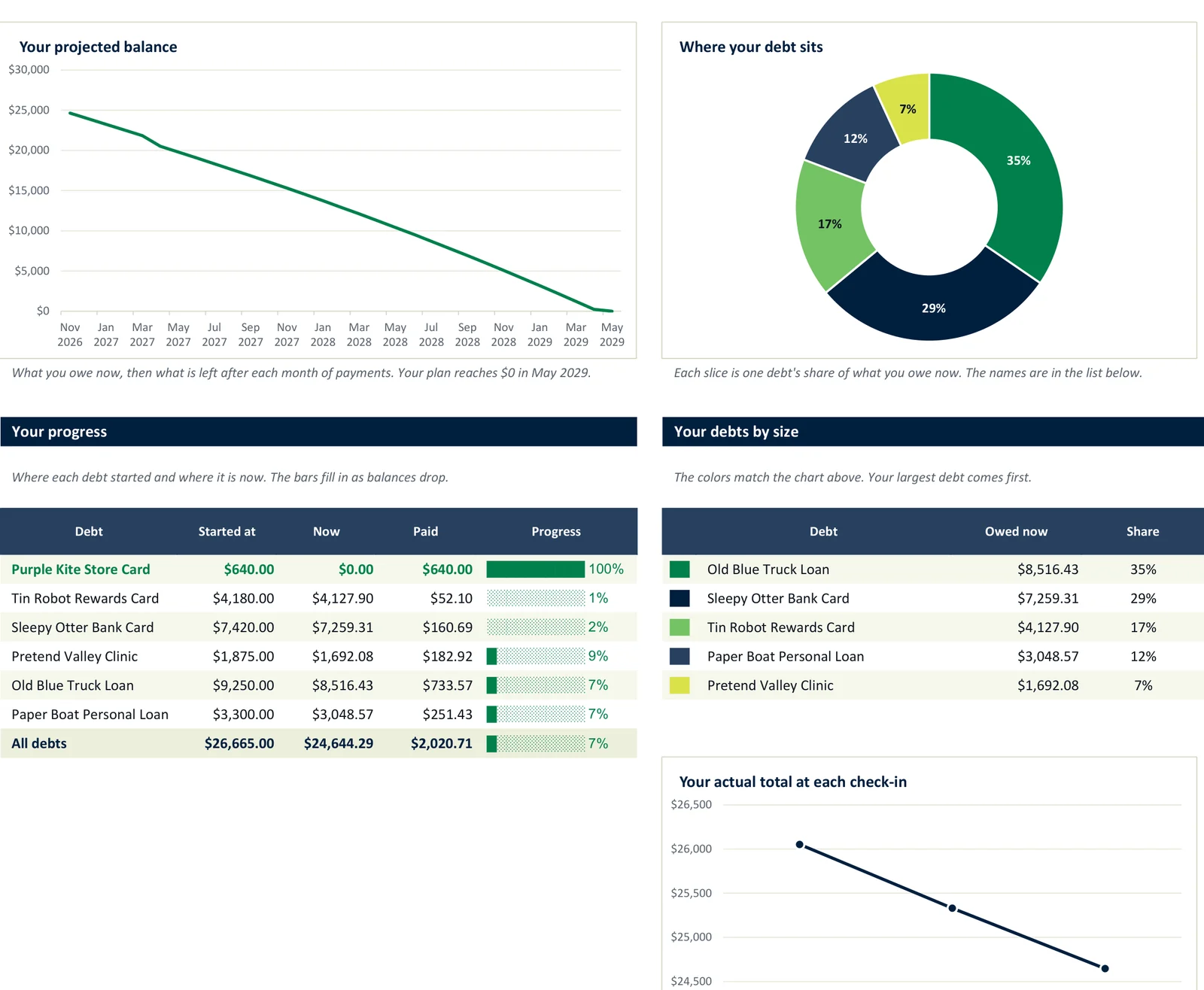
- It shows progress: how much is paid off so far, and a bar for each debt that fills in as the balance goes down.
- It updates the whole plan when you type in new balances once a month.
You pay once. There is no subscription and no bank login.
The 30 days are for getting set up and into a routine, one small task a day. Paying everything off takes as long as the numbers say it takes.
What you get
You get one download and a link to the lessons. There are six parts.
1. The Command Center file
The Command Center is one Excel file, named Debt-Payoff-Command-Center.xlsx, and it also opens in Google Sheets. You type only in the yellow cells. In Excel the other cells are locked, which makes it hard to type over a formula by accident. If one does get typed over, the Help tab shows how to put it back.
A second copy comes filled in with made-up numbers, so you can see what every tab looks like in use before you type anything of your own.
The Command Center has 11 tabs. Five of them are numbered, and you fill those in order. The rest show results or help along the way.
- Start Here lists the five steps in order, explains the colors, and has a line that tells you the formulas are working.
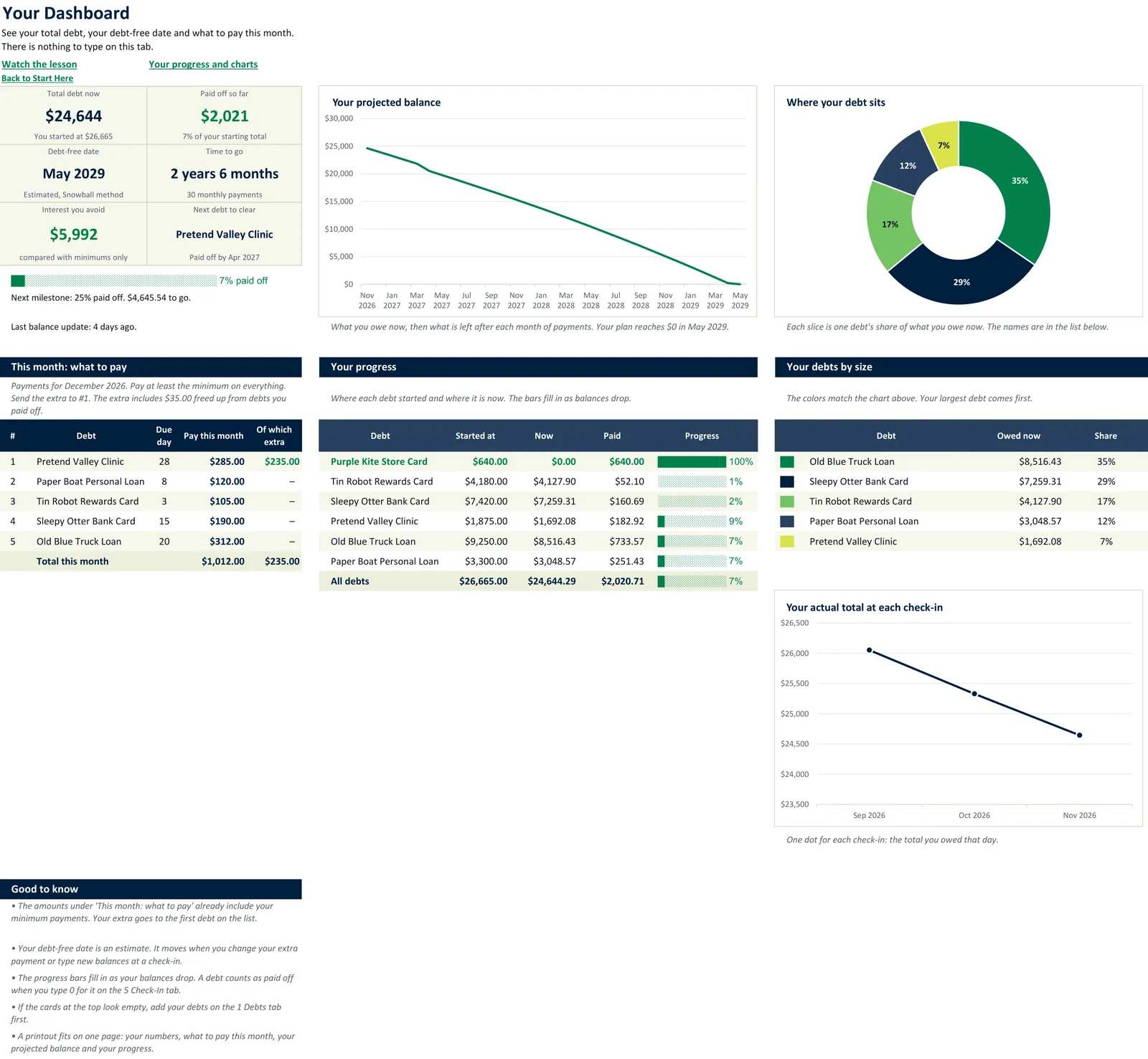
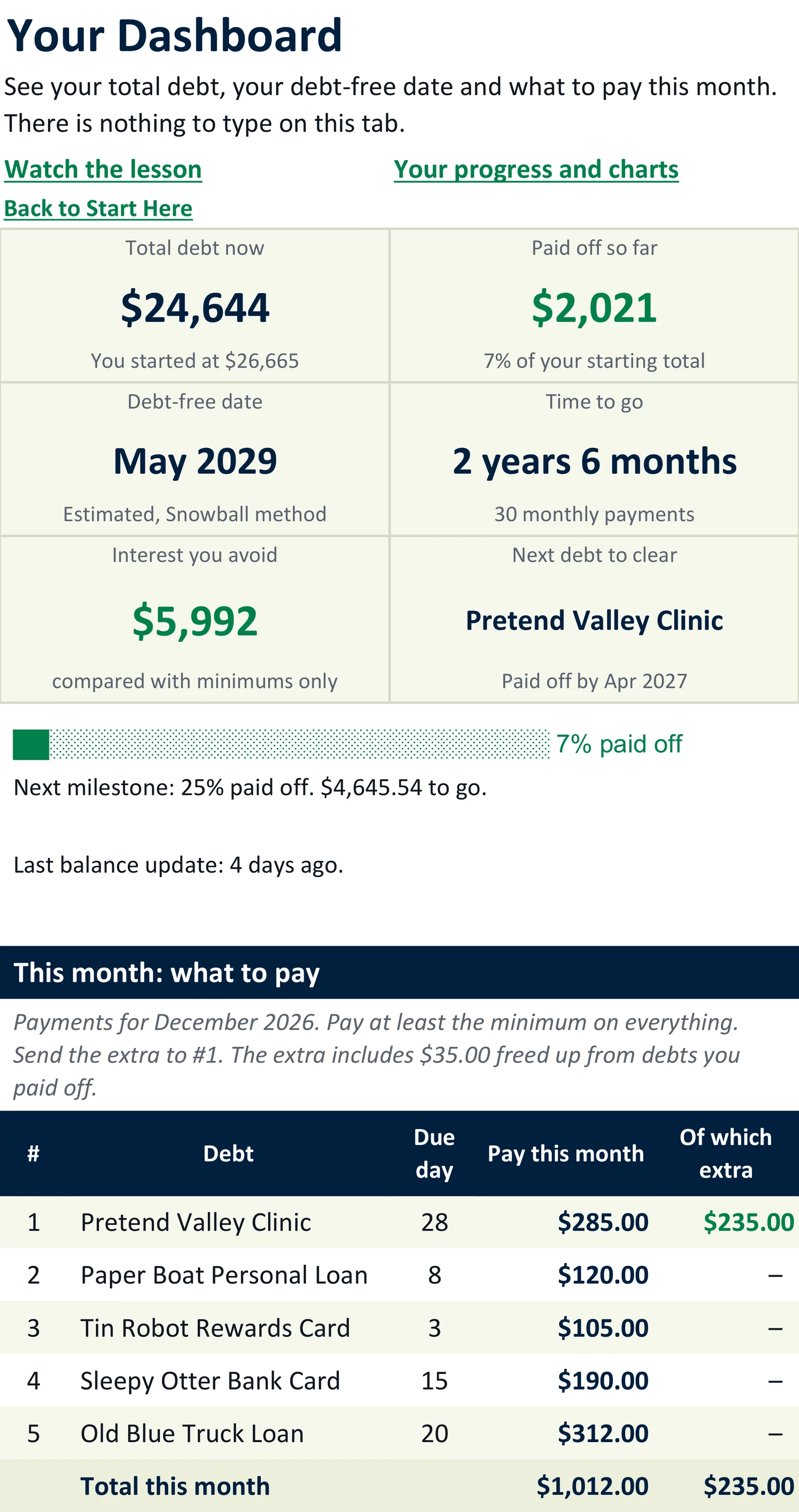
- Dashboard shows the total owed now, how much is paid off so far, the debt-free date and the time to go. Lower down are the list of what to pay on each debt this month, a progress bar for each debt, and charts.
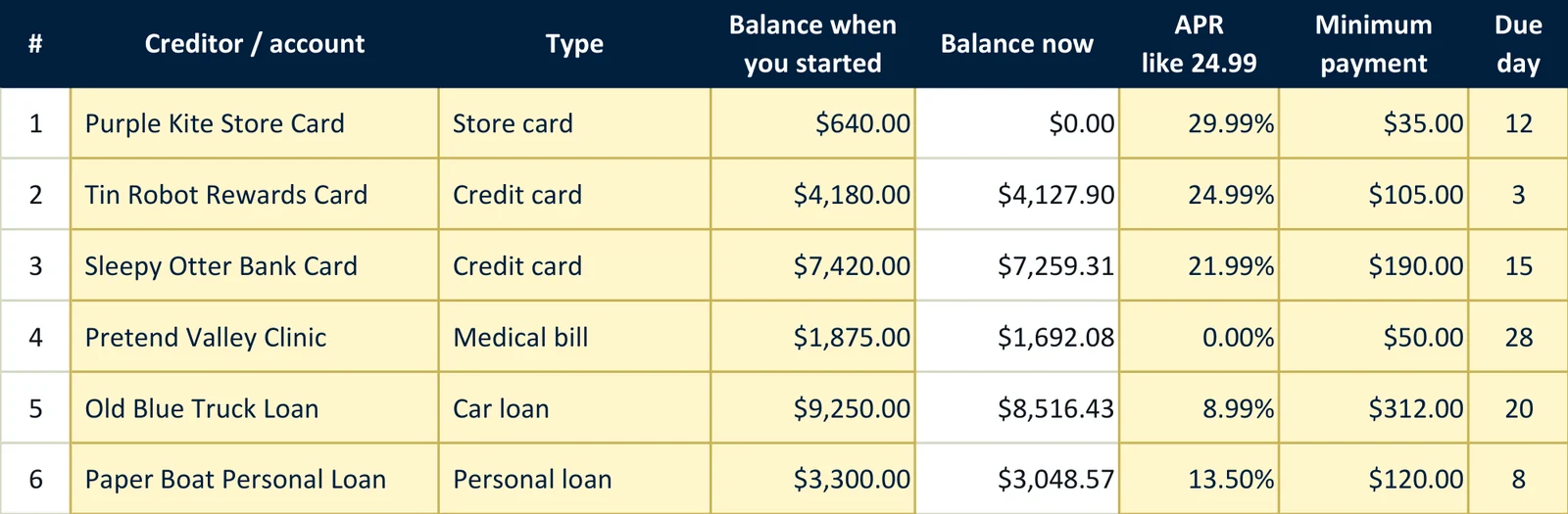
- 1 Debts holds up to 20 debts of any kind: credit cards, store cards, medical bills, car loans, personal loans, student loans, buy now pay later, and money owed to family or friends. It flags any debt where the minimum payment is smaller than the monthly interest.
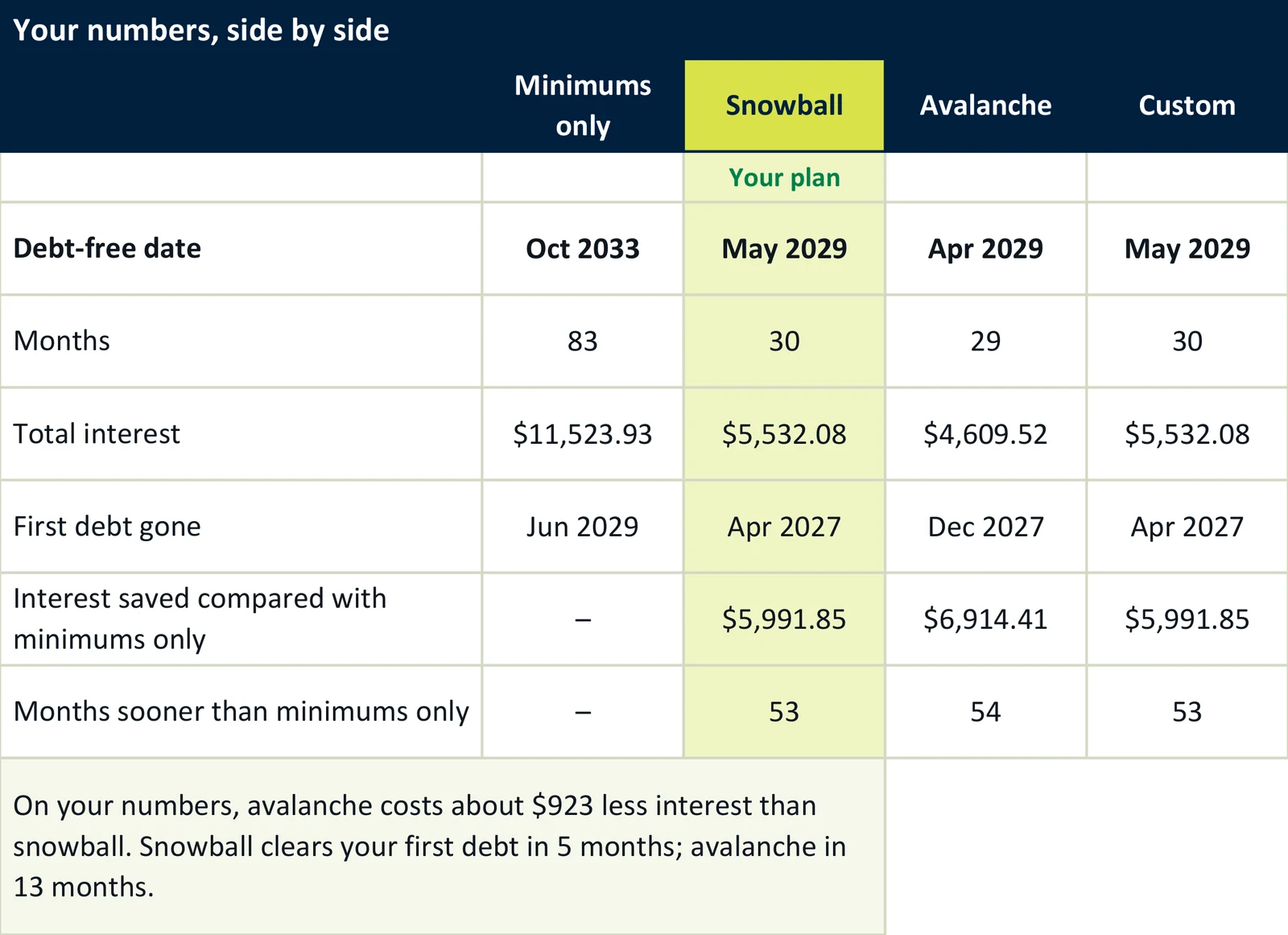
- 2 Plan is where you type the extra amount you can add each month ($0 is allowed) and choose snowball, avalanche or your own order. A table sets the choices side by side, next to minimum payments only, with the debt-free date, the months and the total interest for each. There is also room for one-time extra payments, such as a tax refund.
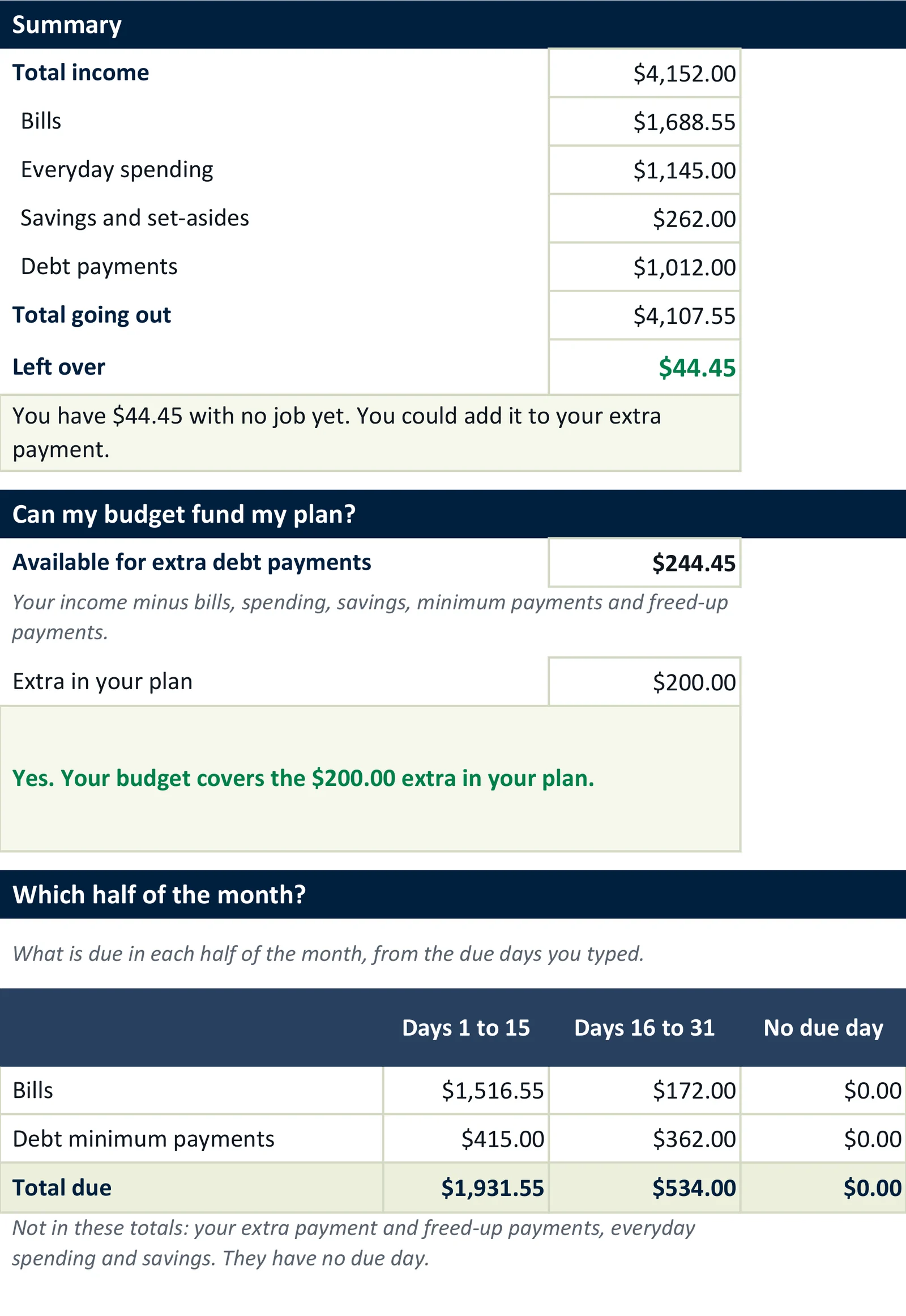
- 3 Budget takes income by paycheck (weekly, every two weeks, twice a month or monthly), bills with due days, everyday spending and savings. It shows what is left over and whether the budget can cover the plan.
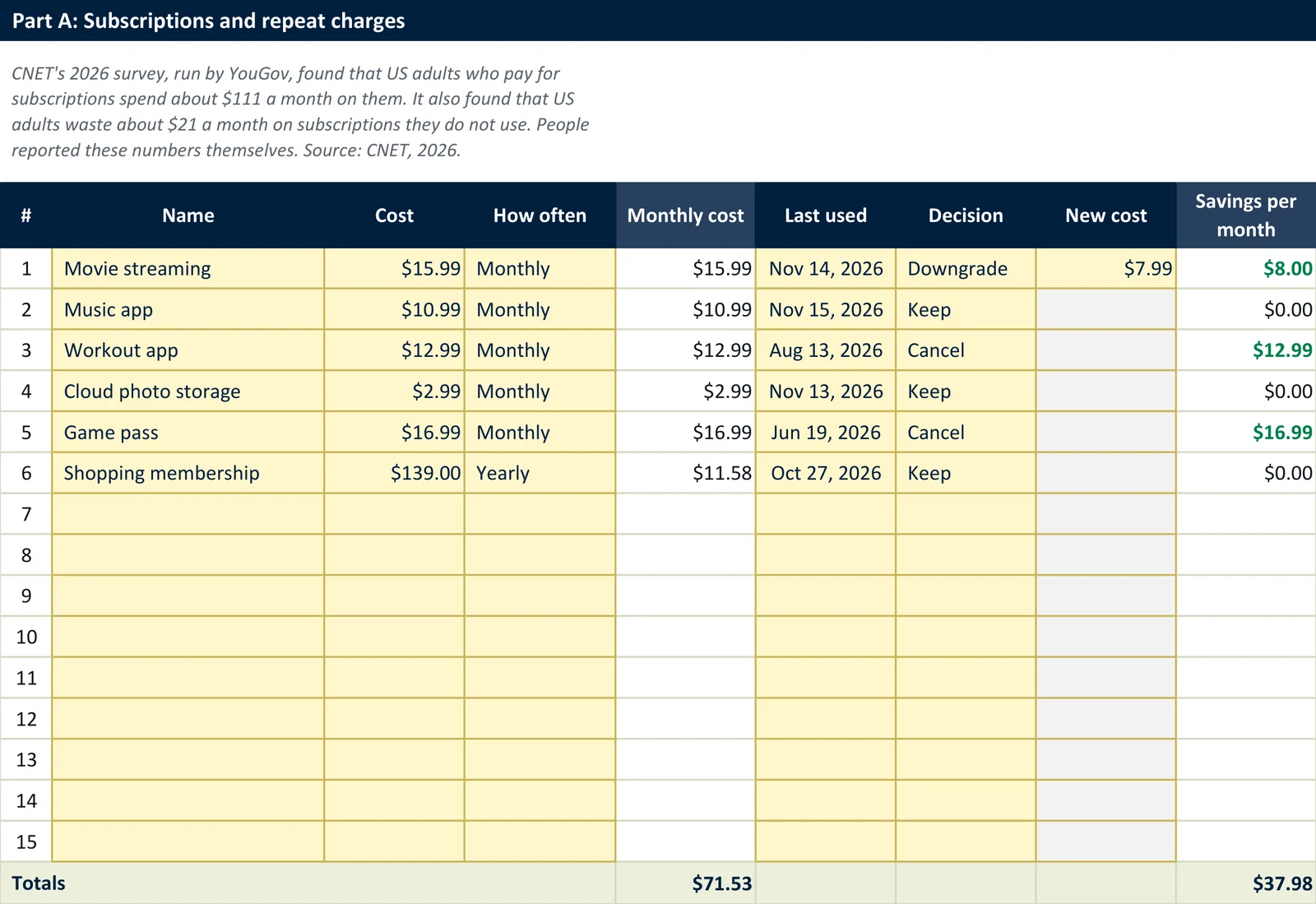
- 4 Find Money has a list for subscriptions and other repeat charges, each marked keep, cancel or downgrade, and a list of calls that can sometimes lower a bill. It keeps a running total of what was found.
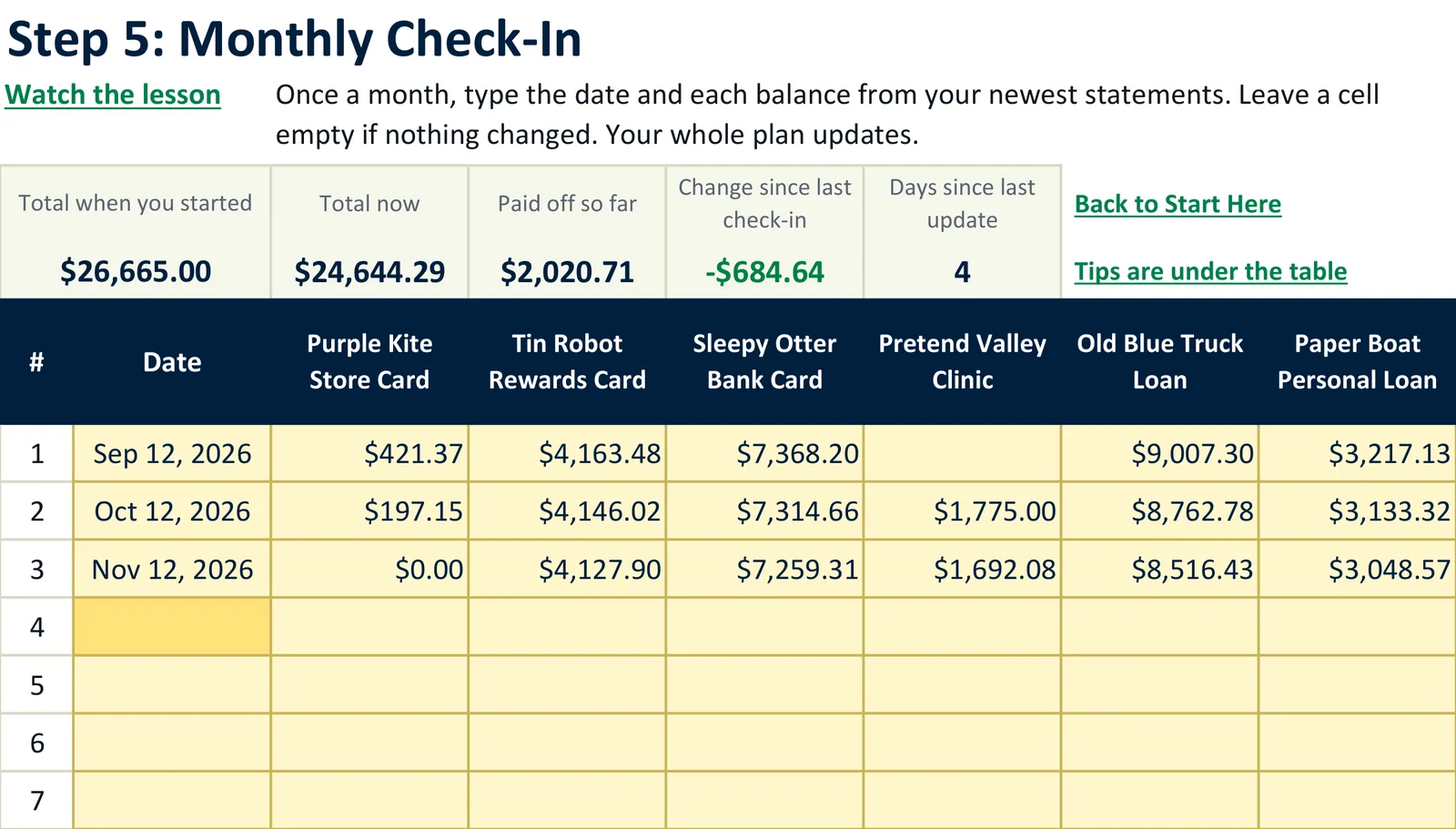
- 5 Check-In is the monthly update. You type the date and each balance from the newest statements, which takes about 10 minutes. There is room for 60 check-ins, which is five years of them.
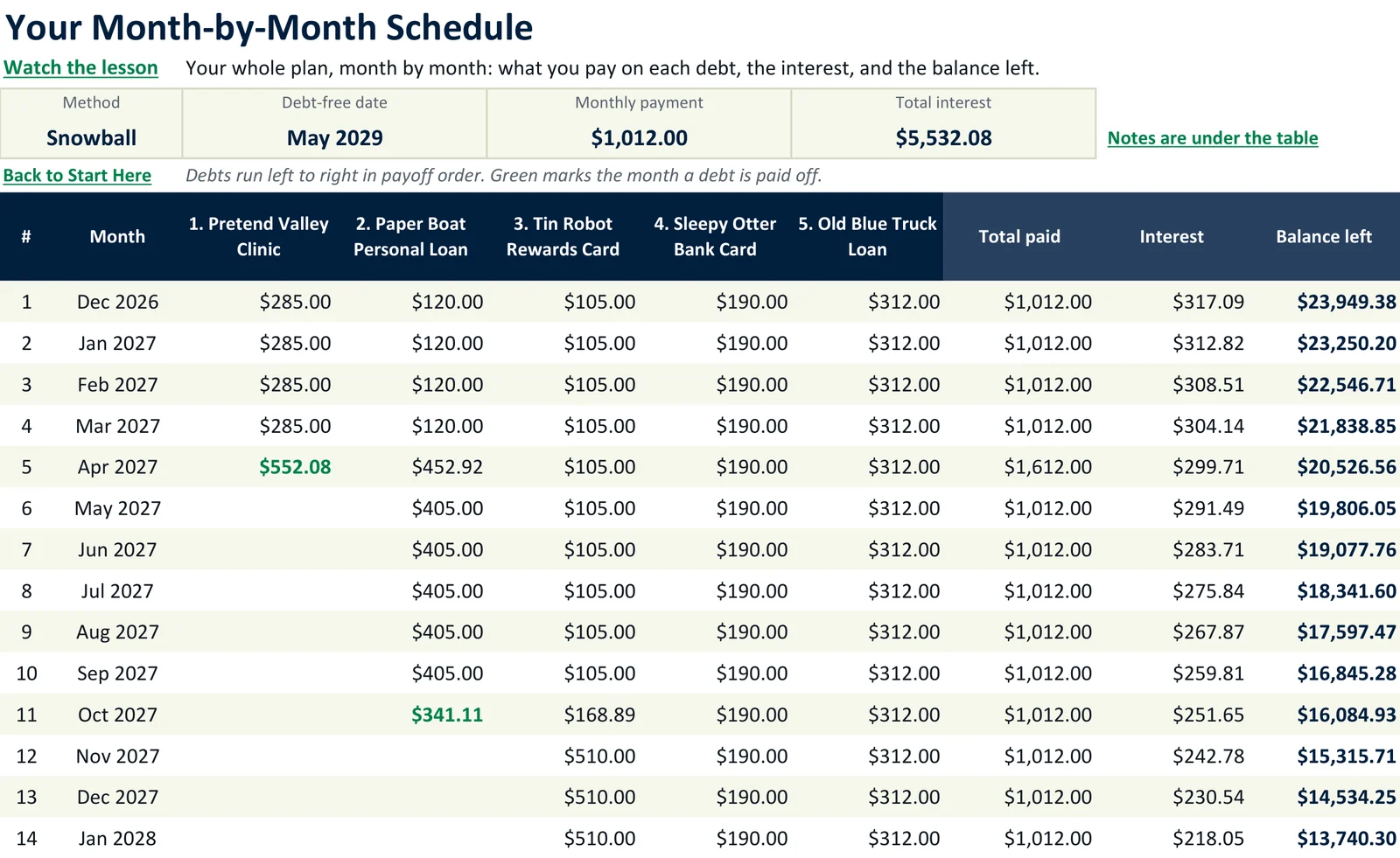
- Schedule lays out the plan month by month: what goes to each debt, the interest, and the balance left. It prints on paper.
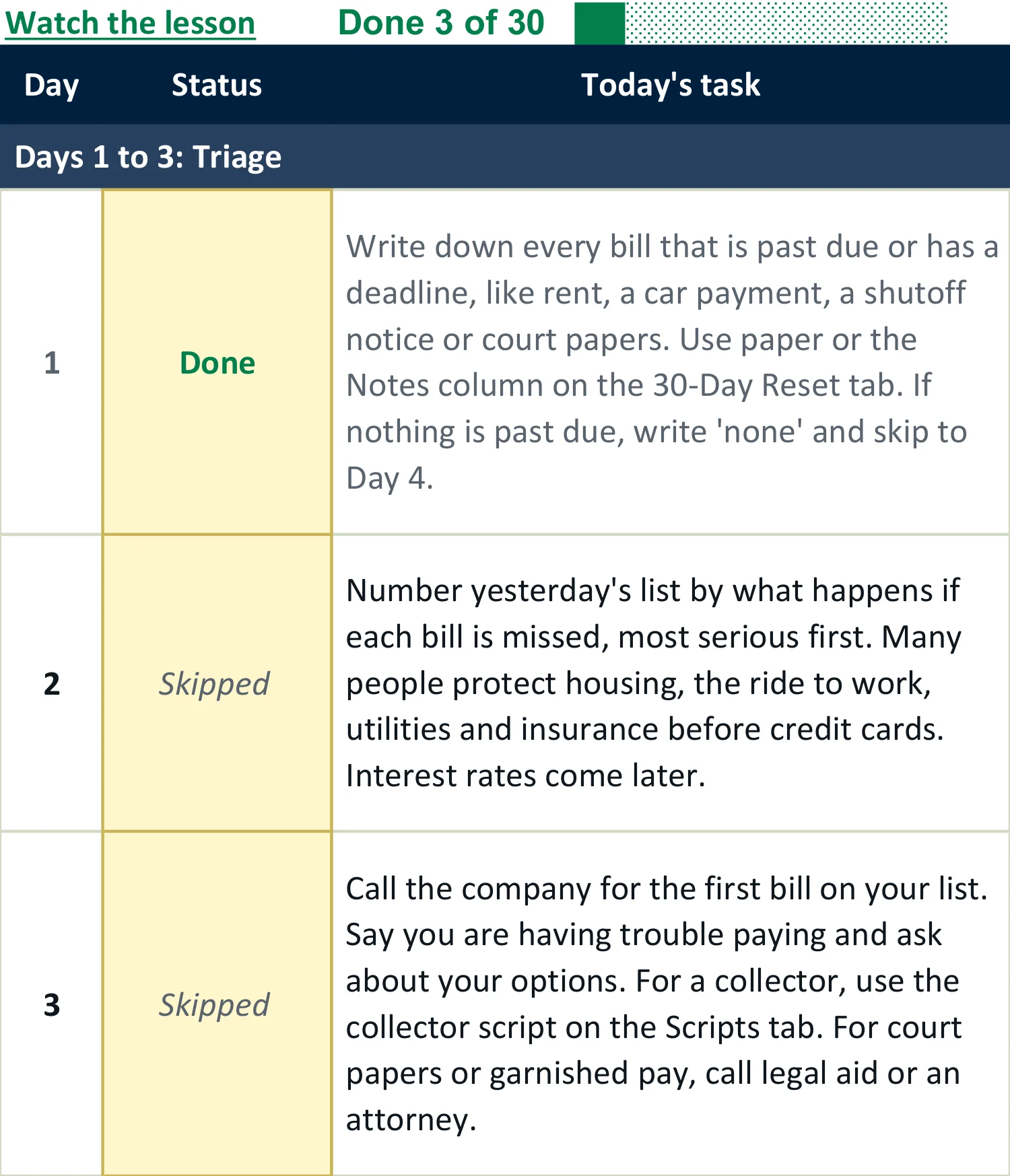
- 30-Day Reset gives one small task a day for 30 days, with a place to mark each one done. The tasks take 5 to 25 minutes each.
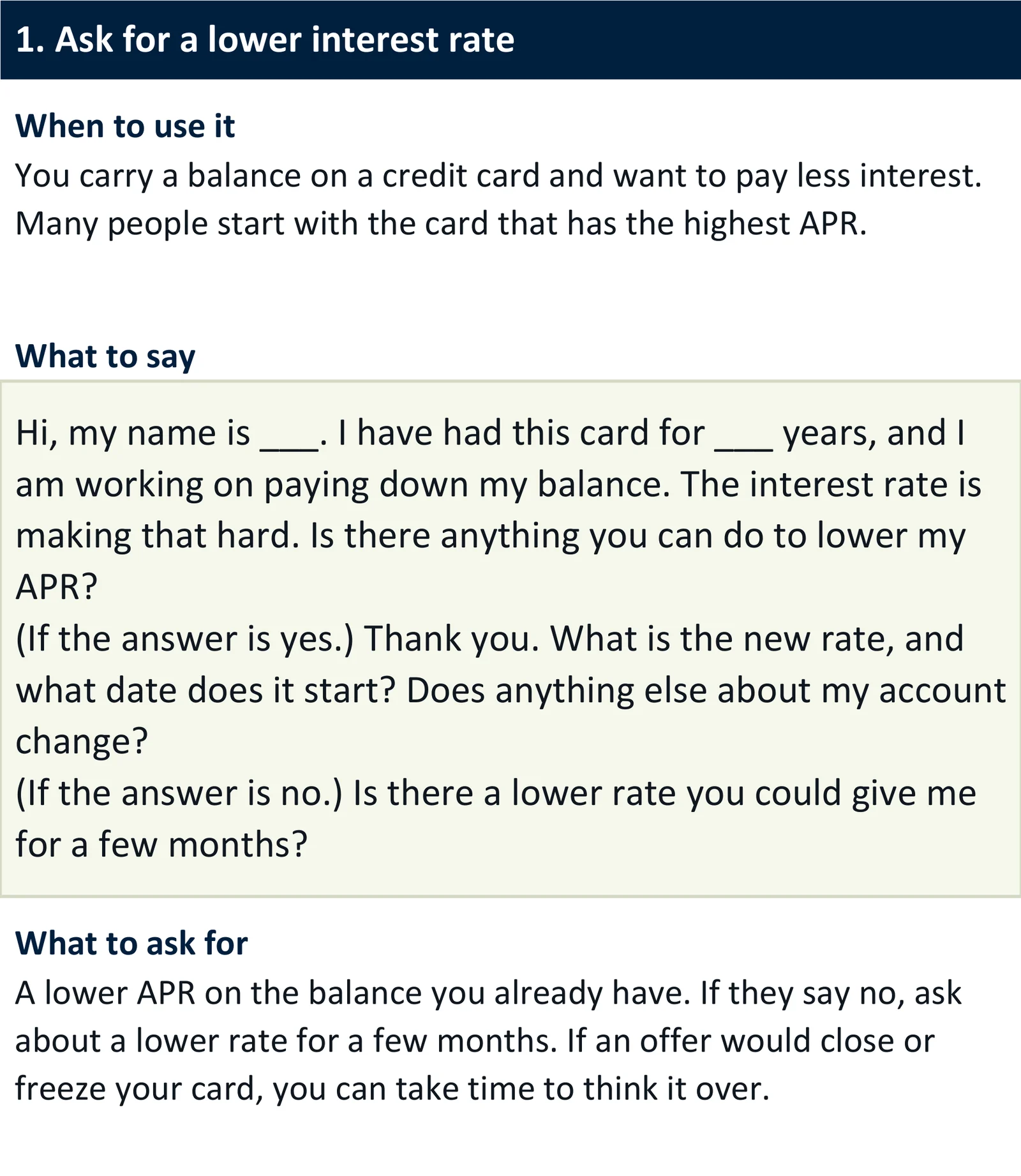
- Scripts has words to use on the phone, and a call log.
- Help covers fixes for common problems, tips for Google Sheets and phones, and a short glossary.
2. Video lessons
Short, numbered lessons show each tab of the Command Center on a real screen, one step at a time. The pace is slow, every lesson has captions, and you can pause or replay at any time. The narrator is Penny, our AI guide. Penny is an AI character, not a real person.
3. Quick Start Guide (PDF)
It shows how to open the file in Excel, in Google Sheets and on a phone. For Google Sheets, it has a link that makes your own copy. It also has the link to the lessons and a one-page plan for the first 20 minutes.
4. Lesson Guide (PDF)
Every step of the 12 lessons, with its picture, so you can follow along on paper.
5. Printables (PDF)
Pages to print: a debt-free progress chart, a 30-day checklist, a debt list worksheet, the call scripts, and a monthly check-in page.
6. Phone call scripts and a call log
The scripts cover asking for a lower interest rate, asking about a hardship plan, asking to have a late fee waived, asking to have an annual fee waived or reduced, and asking about a medical bill. The call log has room for who you spoke with, what they offered and when to follow up. A script is only words to say, and the company you call decides what it offers, if anything.
What you need
Excel 2016 or newer, or a free Google account for Google Sheets. You also need something that opens PDF files, and an internet connection to watch the lessons.
How it works in 5 steps
The steps match the five numbered tabs, and every tab has a link to the lessons.
- Step 1. List every debt.
Take the newest statement for each debt and type in who is owed, the balance, the interest rate (APR), the minimum payment and the due day. The tab adds up the total and shows roughly what the interest is costing this month.
- Step 2. Pick your plan.
Type in how much extra you can add each month. It can be $0. Then choose an order: snowball (smallest balance first), avalanche (highest interest rate first) or your own. You will see the debt-free date, the months and the total interest for each choice, side by side.
- Step 3. Build a budget that funds it.
Type in income, bills, everyday spending and savings. The tab shows what is left over and whether the budget can cover the extra payment from step 2. If it cannot, it tells you by how much.
- Step 4. Find extra money.
List subscriptions and other repeat charges, and mark each one keep, cancel or downgrade. Then work through the list of calls that can sometimes lower a bill, using the scripts. The tab adds up what you found and shows what the extra payment would be with that money added. Whether to raise it is up to you.
- Step 5. Check in once a month.
When new statements come in, type the date and each new balance. The payoff order, the list of what to pay and the debt-free date all update from the real balances. When a debt is paid off, type 0 for it. The Command Center keeps that debt's payment in the plan and moves it to the next debt on the list, so the total you pay stays the same.
After step 2, open the Dashboard tab. The list to use each month is there, under the words "This month: what to pay".
The times are the ones printed on the Start Here tab. They assume the statements are already in front of you.
The 30-Day Reset, in five parts
There is no need to do all five steps in one sitting. The 30-Day Reset tab spreads them over a month, one small task a day. Each task takes 5 to 25 minutes.
- Days 1 to 3. Sort out anything urgent first, such as a bill that is past due.
- Days 4 to 7. Gather the statements and list every debt.
- Days 8 to 14. Look for money in subscriptions and bills, and make a call or two.
- Days 15 to 21. Build the budget.
- Days 22 to 30. Pick the plan, set up the payments and choose a check-in date.
If you miss a day, pick up the next day. After day 30, one habit is left: the monthly check-in.
Worked example
EXAMPLE. Made-up numbers.
What the Command Center shows for six made-up debts
Say these six debts are typed into the 1 Debts tab.
| Debt (example) | Balance | APR | Minimum payment |
|---|---|---|---|
| Store card | $640 | 29.99% | $35 |
| Medical bill | $1,875 | 0% | $50 |
| Personal loan | $3,300 | 13.5% | $120 |
| Credit card 1 | $4,180 | 24.99% | $105 |
| Credit card 2 | $7,420 | 21.99% | $190 |
| Car loan | $9,250 | 8.99% | $312 |
| Total | $26,665 | $812 |
On the 2 Plan tab, the extra amount is set to $200 a month and the order is set to Snowball. That makes $1,012 a month in all.
The Dashboard then lists what to pay this month.
| This month: what to pay (example) | Amount |
|---|---|
| Store card | $235 (the $35 minimum plus the $200 extra) |
| Medical bill | $50 |
| Personal loan | $120 |
| Credit card 1 | $105 |
| Credit card 2 | $190 |
| Car loan | $312 |
| Total | $1,012 |
The 2 Plan tab puts the choices side by side.
| Example results | Minimum payments only | Snowball with $200 extra | Avalanche with $200 extra |
|---|---|---|---|
| Time until every debt is paid | 86 months (7 years 2 months) | 34 months (2 years 10 months) | 33 months (2 years 9 months) |
| Total interest (estimate) | $12,702 | $6,844 | $5,921 |
How to read it:
- In the "minimum payments only" column, each debt gets only the minimum payment that was typed in, month after month, until it is gone. Nothing rolls over.
- In the two plans, the total paid stays at $1,012 a month. When the store card is paid off in month 3, the money that was going to it moves to the next debt on the list. In your own file this happens by itself: after you type 0 for a paid-off debt at a check-in, the 2 Plan tab shows its payment on a line called "Freed-up payments from debts you have paid off".
- In this example, avalanche costs about $923 less in interest than snowball and ends one month sooner. The Command Center shows both and leaves the choice to you.
- Add a one-time payment of $600 in month 5, and the snowball plan in this example ends in 33 months, with about $311 less interest.
These figures are estimates from made-up numbers. They assume the same total is paid every month, no new charges are added, and interest is worked out once a month. Your numbers and your dates will be different.
See inside
These pictures come from the example copy of the Command Center. Every number in them is made up.
The example copy uses the same six debts as the example above. It also has a one-time payment and three monthly check-ins typed in, so its dates and totals are a little different from the ones in that box.
The lessons
Each lesson shows the Command Center on a real screen, one step at a time. The pace is slow on purpose, every lesson has captions, and you can pause or replay as often as you like.
Penny, our AI guide, narrates them. Penny is an AI character. She is not a real person and she is not a financial professional.
What the lessons cover
- 1Welcome: what is in the download and where to start
- 2Open your file: Excel, Google Sheets or phone
- 3Find your way around
- 4List every debt
- 5Pick your plan and read your numbers
- 6Your Dashboard: what to pay this month
- 7Find money, part 1: subscriptions
- 8Find money, part 2: calls that can sometimes lower a bill
- 9Your budget and your paychecks
- 10The monthly check-in
- 11When life happens: one-time money, new charges, a missed month, a 0% deal
- 12Staying with it, and where to get help
The lessons are on a page of our site. You will find the link in the Quick Start Guide and on every tab of the Command Center. They teach how to use it, which makes them general education, not personal advice. There are 12 lessons, about 42 minutes in all. The shortest runs about a minute and a half and the longest about five minutes. A printable lesson guide lists the steps of every lesson, so you can follow along on paper.
Price and guarantee
| Price | $27, one payment |
|---|---|
| Starter price ends | January 31, 2027. From February 1 the price is $47. |
There is no subscription, and nothing renews.
This is the first version, so it is priced at $27 while we collect feedback from early buyers. On February 1, 2027 the price goes to $47, and we plan to release an improved version around then. Buy at the starter price and you get that version and every later update at no extra cost. We email the new files to you.
What the price covers
- The Command Center file, plus the example copy with made-up numbers
- The video lessons
- The Quick Start Guide (PDF)
- The Lesson Guide (PDF)
- The printables (PDF)
- The phone call scripts and call log
30-day money-back guarantee, no questions asked
Use it for up to 30 days. If it is not for you, email shawn@debtspreadsheets.com and ask for a refund. We will not ask why, and you get back the full amount you paid.
Payhip handles the checkout. You can download the files as soon as you pay, and a receipt with the download link also comes by email. Payhip adds sales tax or VAT where it applies.
Sold by SRM Digital Ventures LLC, Picayune, Mississippi. Questions: shawn@debtspreadsheets.com
Questions and answers
Free tools exist. Why would I pay for this?
The free tools are good, and for some people they are enough. The website undebt.it has a free online payoff planner, Vertex42 has a free debt reduction calculator, and our own three free tools are on this site. All of them can put debts in order and show a payoff date, and the Command Center does the same kind of math. What the $27 pays for is the rest: video lessons that show each step, a 30-day plan with one small task a day, a budget and a find-money tab that tie into the plan, phone scripts and printables. If a calculator is all you want, use a free one.
I am not good with spreadsheets. Can I still use it?
Yes. It was made for beginners. You type only in the yellow cells, and there are no formulas to write and nothing to drag or copy. Every tab has a link to the lessons, where the same screen is shown slowly, one step at a time. If something looks wrong, the Help tab lists the common fixes. It is still a spreadsheet, though, so if you have never opened one, the first sitting may feel slow. The Quick Start Guide has a one-page plan for the first 20 minutes.
Does it work in Excel, in Google Sheets and on a Mac?
Yes. It is a normal Excel file (.xlsx) with no macros. It opens in Excel 2016 or newer on Windows or Mac, and in Google Sheets, which is free with a Google account. The Quick Start Guide shows how to open it each way. It is not made for Excel 2013 or older. We have not tested it in Apple Numbers or LibreOffice, so we do not promise it works there.
Can I use it on my phone?
Yes, with the free Google Sheets app or the Excel app. The tabs you type in use large type and few columns, but a spreadsheet on a small screen still takes some zooming and scrolling. Wide tabs, like the month-by-month Schedule, are easier to read on a bigger screen or on paper. If a computer is handy, the first setup is easier there. After that, the monthly check-in is one row: the date and each balance. A computer helps, but it is not required.
What if there is no extra money to add?
The plan still works with $0 extra. It shows what to pay this month and, when the payments are enough to get there, a debt-free date. In the plan, each paid-off debt's payment rolls to the next one. The 4 Find Money tab is there to look for the first few dollars, with repeat charges to review and calls that can sometimes lower a bill. We cannot promise it will find any. If minimum payments plus essentials come to more than the money coming in, a spreadsheet is the wrong tool, and a nonprofit credit counselor (nfcc.org) is a better first step.
I get paid every two weeks, or my pay changes. Does it fit?
The 3 Budget tab takes each paycheck and how often it comes (weekly, every two weeks, twice a month or monthly) and turns it into a monthly amount. A small helper shows how much of the bills and minimum payments falls due in the first half of the month and how much in the second half. The payoff plan itself runs month by month, and there is no special setting for pay that changes a lot. One way to handle that is to set the monthly extra from a low month, then add better months as one-time extra payments on the 2 Plan tab.
What if a balance goes up, or the numbers do not match my statement?
Both will happen. The Command Center works out interest once a month and many card companies work it out every day, so a statement will be a little different. The plan also assumes no new charges. The monthly check-in is there for exactly this: you type the real balance from each new statement, and the plan starts again from there. A balance that went up is fine to type in. The dates will move, and you will see by how much.
Does it connect to my bank? Who can see my numbers?
It does not connect to anything, and there is no bank login. The file sits on your own computer or phone, or in your own Google Drive if you use Google Sheets. Nothing you type is sent to us. In Excel on a computer, the Command Center works without an internet connection. You never need to type an account number, a card number or a password into it. A name like "Blue card" is enough.
Snowball or avalanche: which does it use?
Both, and your own order as a third choice. Snowball pays the smallest balance first, and avalanche pays the highest interest rate first. The 2 Plan tab shows them side by side, with the debt-free date, the months and the total interest for each, and then you pick one from a list. The Command Center does not tell you which to choose. You can switch later in a few seconds.
Is this financial advice?
No. We're not financial advisors, and this is general education, not personal advice. The Command Center does math on the numbers you give it and knows nothing else about your situation. If you are being sued or having wages garnished, please talk with a nonprofit credit counselor (nfcc.org) or an attorney.
Why does the price go up on February 1?
This is the first version of the Command Center. We set a starter price of $27 while early buyers tell us what to improve. On February 1, 2027 the price becomes $47, and we plan to release the improved version around then. The date will not move, and there is no countdown clock. If you buy at the starter price, you get the improved version and every later update at no extra cost.
How do I get it? Is it really one payment?
Yes, it is one payment of $27, with no subscription and nothing that renews. Payhip handles the checkout. As soon as you pay, you can download the files, and a receipt with the download link also comes by email. The download is one ZIP file. Inside are the Command Center file, the example copy, the Quick Start Guide, the Lesson Guide and the printables. The Quick Start Guide has the link to the lessons. The files are yours to keep.
What if I do not like it?
Email shawn@debtspreadsheets.com within 30 days of buying and ask for a refund. You do not have to say why. We send back the full amount, the same way you paid.
Good to know
The Command Center is a spreadsheet and video lessons. It is not a debt relief service, a loan or financial advice, and it does not promise a result. The debt-free date and the interest figures are estimates from the numbers you type in. Penny, who narrates the lessons, is an AI character and not a real person, and AI tools helped make the lessons and guides. Sold by SRM Digital Ventures LLC, Picayune, Mississippi.
Debt Payoff Command Center: the 30-Day Debt Reset system
You get the Command Center, the example copy, the video lessons, the Quick Start Guide, the Lesson Guide, the printables and the call scripts. The Command Center opens in Excel and in Google Sheets.
It is $27, one payment, with a 30-day money-back guarantee.
If you have a question first, email shawn@debtspreadsheets.com.
If you are not ready to buy, the three free tools are still free. Get the free tools